
Device guide
IPTV on Android
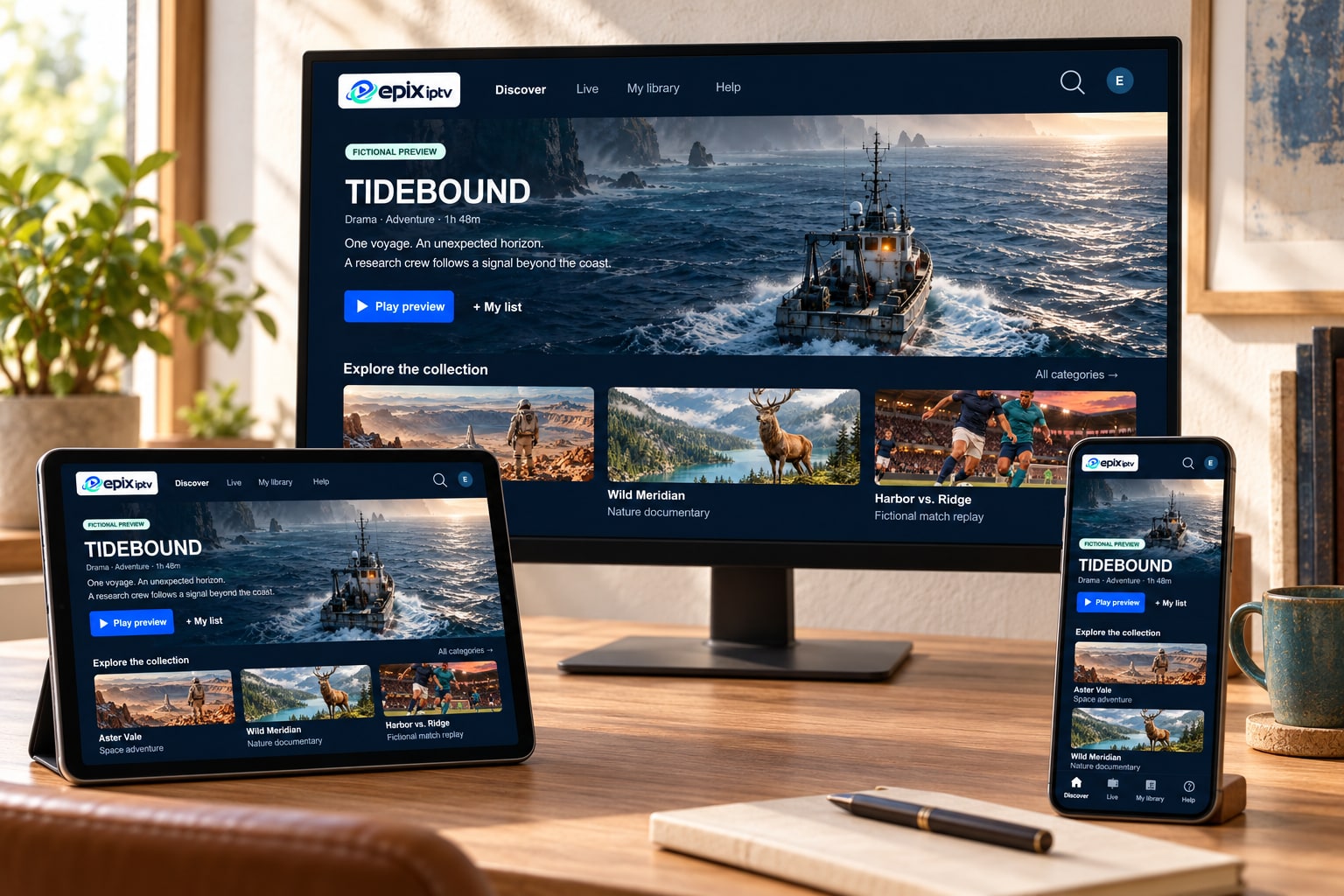
Android has the widest choice of player apps of any platform. Use Epix IPTV on your phone on the go, on a tablet in the kitchen, or on an Android TV box in the living room, all with one login.
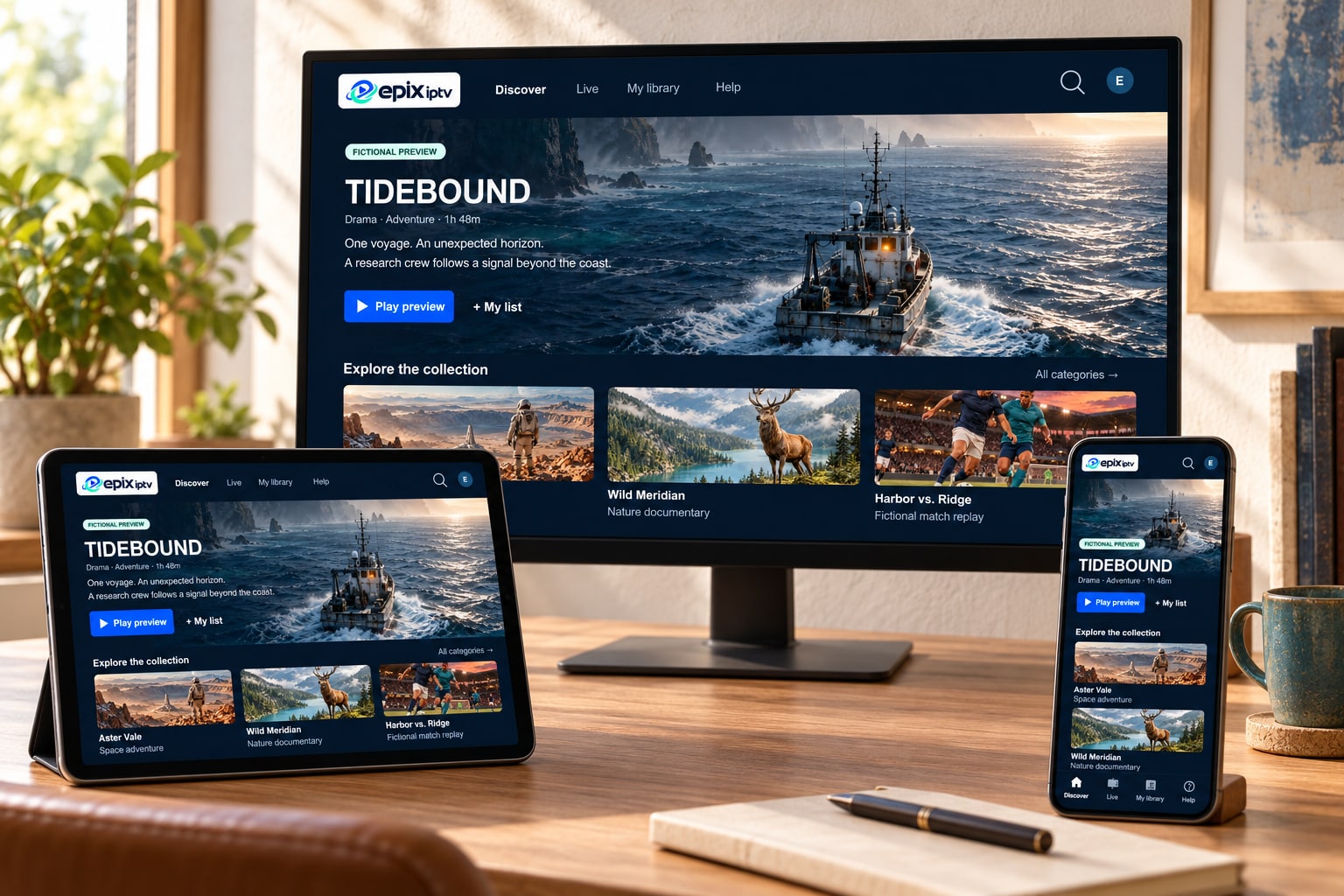
Choose your setup
Three kinds of Android device
They all install apps from Google Play, but each one suits a different way of watching.
Phones
Perfect for commutes, travel and checking a score. Use Wi-Fi when you can to save mobile data.
Tablets
A great second screen for the kitchen or bedroom. Larger screens make the TV guide easy to browse.
Android TV boxes & Google TV
The living-room option. Choose a known brand with an Ethernet port and current security updates.
Step by step
Set up in five steps
Update Android
Settings → System → Software update. Android 9 or newer is recommended.
Install the player from Google Play
Search for the app we recommended and tap Install.
Allow the permissions it needs
Usually network access, and storage if you want to save settings.
Add your Xtream Codes login
Enter server, username and password, then wait for the first load to finish.
Star your favorite channels
Long-press a channel to add it to favorites for quick access.
Big screen
Casting from your phone to the TV
If your TV has Chromecast built in (many Google TV, Android TV and some other sets do) or you have a Chromecast device, many player apps can send the picture to the TV.
Connect both to the same Wi-Fi
Phone and TV must be on the same network.
Tap the Cast icon in the player
It looks like a screen with Wi-Fi waves, usually in the top corner.
Pick your TV
The video moves to the TV; your phone becomes the remote.
Casting adds one more link in the chain. For daily viewing on a TV, an app running directly on the TV or a stick is more reliable.
Mobile data use (approximate)
| Quality | Data per hour |
|---|---|
| SD | about 0.7 GB |
| HD | about 1.5–3 GB |
| Full HD | about 3–4.5 GB |
| 4K | 7 GB or more |
Battery-friendly viewing
- Lower screen brightness a step or two.
- Use Wi-Fi instead of mobile data, which uses more power.
- Choose HD instead of Full HD on a phone; the difference is hard to see on a small screen.
Android questions
Which Android TV box should I buy?
Choose a box from a well-known brand that still receives Android TV or Google TV updates and has an Ethernet port. Avoid unbranded boxes sold “fully loaded” with apps.
Can I watch on my phone while someone uses the TV?
That depends on how many screens your plan allows at the same time. Ask us if you need two screens at once.
The app works on Wi-Fi but not on mobile data.
Check that the app is allowed to use mobile data in Settings → Apps → your player → Mobile data. Some carriers also block certain streaming ports; try Wi-Fi to confirm.
Do I need to root my Android device?
No. Never root a device for IPTV. Everything works with standard apps from Google Play.
Using Android? We’ll name the right app.
Tell us whether it’s a phone, tablet or TV box and its model. We’ll reply with a current, working player and the steps.