Skip to content

Device guide

IPTV on your Smart TV

Watch Epix IPTV straight from your television, with no stick and no extra remote. Here’s which Smart TV systems work best, how to install a player app on Samsung, LG and Google TV, and the picture settings worth changing.

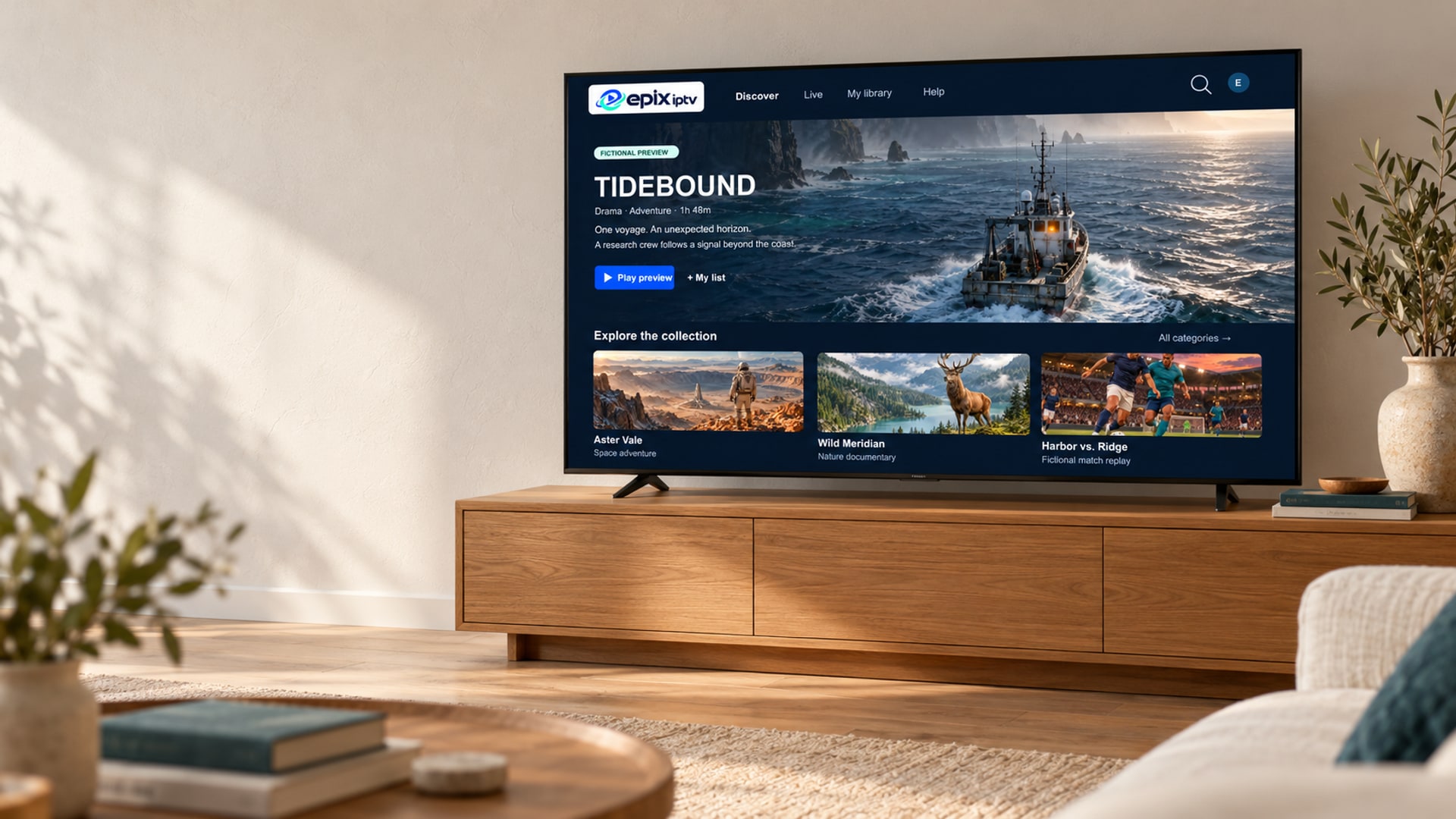
A television displaying the Epix IPTV preview interface in a sunlit living room.

By brand

Which Smart TVs work best

The TV’s operating system decides which player apps you can install. This is the pattern we see in support.

Smart TV operating systems and IPTV app support
TV systemFound onApp choiceOur verdict
Google TV / Android TVSony, TCL, Philips, Hisense (some), XiaomiWidest: full Google PlayExcellent. Same apps as Android boxes.
TizenSamsungGood: several IPTV players in the Samsung storeVery good on models from roughly 2018 on.
webOSLGGood: IPTV players in the LG Content StoreVery good on models from roughly 2018 on.
VIDAA, Roku TV, othersHisense (some), Roku TV models, budget brandsLimitedUse a stick. A Fire TV Stick is simpler.

Step by step

Install the player app

The menu names differ slightly by brand and year, but the steps are the same idea on every TV.

Samsung (Tizen)

  1. Press Home and open Apps.
  2. Search for the player app we recommended and select Install.
  3. Open the app and choose the Xtream Codes login option.
  4. Enter your server, username and password, then Save.

Some Samsung players show a device ID on screen and let you add your login from a phone instead of the remote.
LG (webOS)

  1. Press Home and open the LG Content Store (Apps).
  2. Search for the recommended player and install it.
  3. Open it and pick “Xtream Codes” or “Add playlist”.
  4. Enter your login and wait for the list to load.

If your LG remote has a pointer, use it to type faster on the on-screen keyboard.

Google TV / Android TV

  1. Open the Apps tab, then Search for apps.
  2. Install the recommended player from Google Play.
  3. Allow the permissions it requests.
  4. Add your Xtream Codes login and open a channel.

You can also install from Google Play on your phone and choose your TV as the device.

Picture settings

Settings that make live TV look better

  • Use a network cable. Most TVs have an Ethernet port, and it’s the single biggest upgrade for live sport.
  • Turn motion smoothing down (Auto Motion Plus on Samsung, TruMotion on LG) if sport looks artificial.
  • Pick a “Standard” or “Filmmaker” picture mode rather than “Vivid” for natural colors.
  • Keep the TV software updated in Settings → Support. Updates fix app crashes.
  • Restart the TV fully once a week: hold the power button until it reboots, or unplug it for 30 seconds.
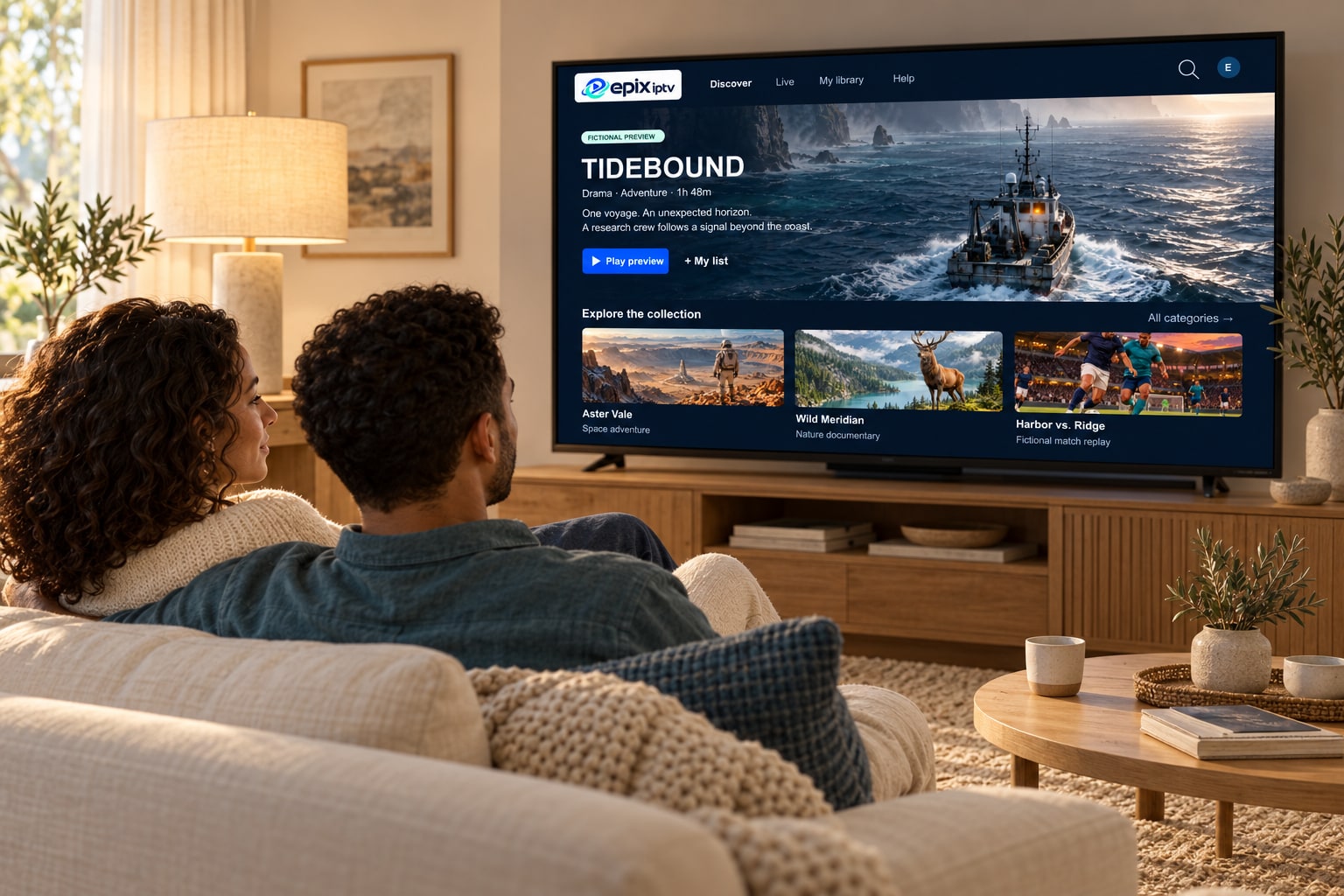
A couple watching the Epix IPTV library on a large living-room Smart TV.

When a streaming stick is the better choice

If your TV is older than about six years, runs slowly, or uses a system with few apps, a streaming stick is often the cheapest fix. It plugs into an HDMI port, brings a modern app store and usually feels much faster than the TV’s own processor.

Smart TV questions

How do I find my TV’s model and year?

Look at the sticker on the back of the TV, or go to Settings → Support → About This TV (names vary). Send us the model number and we’ll tell you whether a suitable app is available.

The player app isn’t in my TV’s store. What now?

App availability differs by country and TV year. Ask us for an alternative app for your model, or use a streaming stick, which works on any TV with HDMI.

Can I watch 4K on my Smart TV?

Yes, if the TV is 4K, the channel is offered in 4K and your connection provides around 30 Mbps or more. A wired connection makes 4K far more stable.

Why is the app slow on my TV?

TV processors are modest and age quickly. Clear the app’s cache, close other apps, and restart the TV. If it’s still slow, a streaming stick will feel much quicker.

Send us your TV model

We’ll tell you which player app works on it today, and send the exact steps.

Chat on WhatsApp