
How to Set Up an IPTV Player App: A Step-by-Step Checklist
A calm, step-by-step checklist for installing a player app, entering your Xtream Codes or M3U login and loading the TV guide on any device.
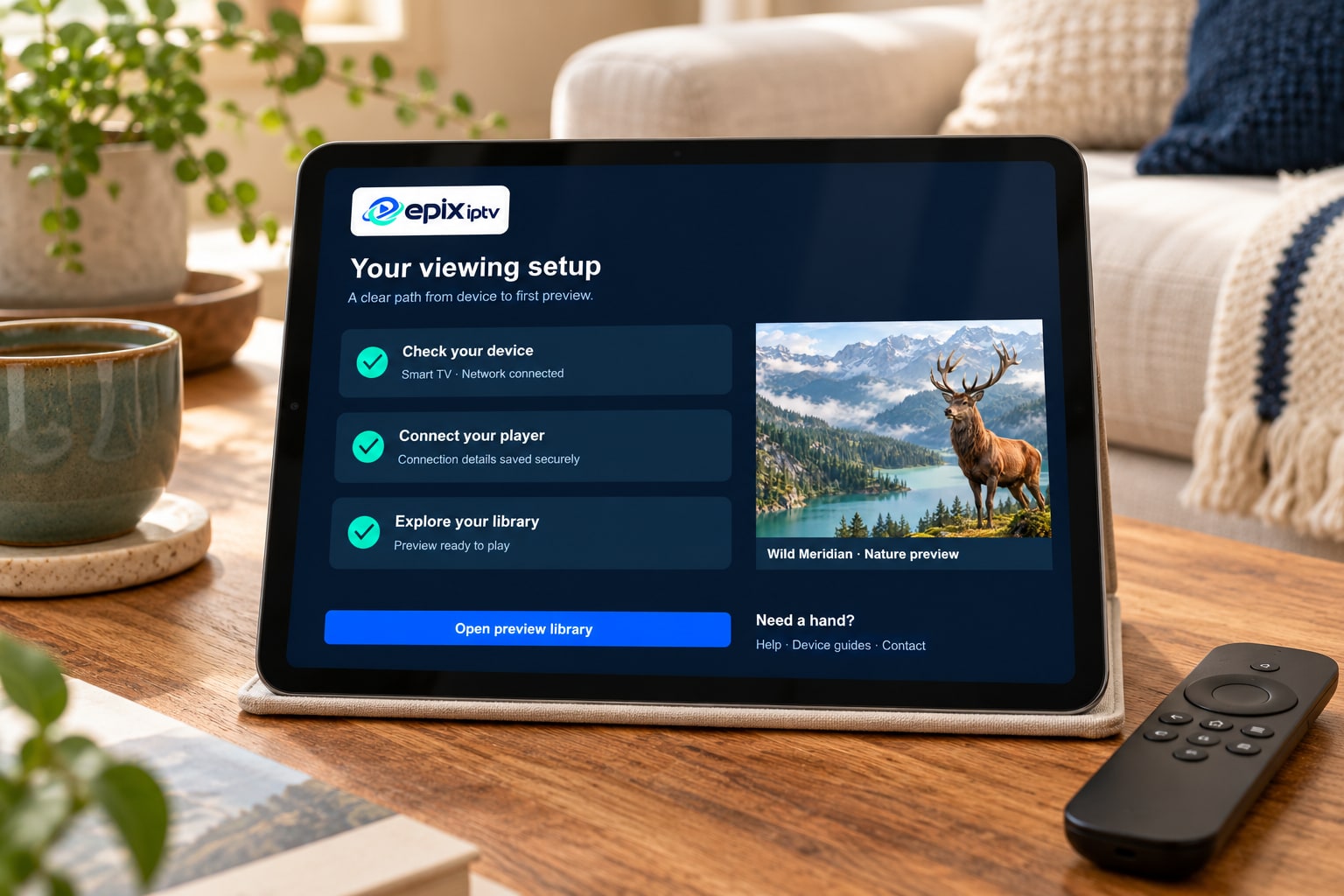
Most setup problems come from small details: a missing character in a password, a TV that hasn’t updated in a year, or an app that expects a different kind of login. This checklist walks through the whole process in the order our support team uses, so you can get to your first channel without guesswork.
Before you start: three things to have ready
- Your device, updated. Open the system settings and install any pending software update. Old firmware is the most common reason an app won’t install.
- Your login details. After you order, you receive either an Xtream Codes login (server address, username and password) or an M3U playlist link. Keep the message open so you can copy them exactly.
- A stable connection. For Full HD, plan on around 20 Mbps for the screen you’re using. If the TV is far from the router, a network cable is the single biggest improvement you can make.
Step 1: Install a player app from your device’s official store
Epix IPTV works through a player app, the same way a music service works through a music app. Use the official store on your device: the Amazon Appstore on Fire TV, Google Play on Android and Google TV, the App Store on Apple TV, iPhone and iPad, and the built-in app store on Samsung and LG televisions. If you’re unsure which app suits your device, ask us on WhatsApp and we’ll name one that currently works well on it.
Some player apps are free. Others ask for a small one-time or yearly fee, which is paid to the app developer, not to Epix IPTV.
Step 2: Choose the right login type
When the app opens, it usually asks how you want to add a playlist. Pick the option that matches what you received:
- Xtream Codes API / “Login with Xtream”: enter the server URL, username and password. This is the best choice for most people because it loads the channel list, movies, series and TV guide together.
- M3U URL: paste the full playlist link. Use this only if the app doesn’t support Xtream Codes.
Type the server address exactly as sent, including http:// and the port number if there is one. Usernames and passwords are case-sensitive.
Step 3: Let the first load finish
The first time you sign in, the app downloads the full channel and on-demand list. On a streaming stick this can take a few minutes. Leave it running and don’t press back. Later visits are much faster because the list is stored on the device.
Step 4: Load the TV guide (EPG)
Most apps fetch the TV guide automatically with an Xtream Codes login. If the guide is empty, look for “Update EPG” or “Refresh TV guide” in the app settings and run it once. Set the app’s time zone to your local time so programs line up correctly.
Step 5: Tune the picture
- Set the player’s decoder to hardware first. If you see a black screen with sound, switch to software.
- Increase the buffer size one step if live channels pause during busy evenings.
- On 4K TVs, turn off motion smoothing for sport if the picture looks unnatural.
Still stuck? Send us these three things
Message support with your device model, the app name and a photo of what you see on screen. With those three details, we can usually answer in one reply. You can also work through the troubleshooting checklist or follow the full installation guide for your device.
Not a subscriber yet? Compare the Epix IPTV plans or request a free trial to test your setup first.
Comments